 Minders
 1.6
What's New
A big update full of quality-of-life improvements: faster, easier to get around, nicer to read, and a better editor.
Faster everywhere Big collections open quickly, posts open much faster on Mac, and link previews load sooner. Easier to get around Feeds keep your place, and each Mac tab has its own back and forward. The Post Viewer On Mac, read posts in their own window while your list stays put. A better grid As wide as your window and grouped by month, with link and video previews. Nicer to read Headings, quotes, checklists, code and threads all look the part. A better editor Tag suggestions, reordering photos, and Undo and Redo on iPhone and iPad.
New Names
A few things have clearer names. They work the same way.
- Streams are now Collections. Each collection keeps its own posts, tags and history.
- Contents is now History: your posts by year and month, plus On This Day.
- Likes are now Favorites.
- Re-post is now Remind Me. Bring a post back to the top of Home now, or on a random day in the next week, few weeks or month.
- Scheduled is now Upcoming.
Minders also has a new icon, and a Sample Collection that shows new users what’s possible.
Faster
- Big collections open quickly. Feeds load a page at a time, with a Load More button at the bottom.
- Posts, long ones especially, open much faster on Mac, including from the grid.
- Scrolling stays smooth on iPhone and iPad while photos and link previews load.
- Link previews appear sooner. The post you’re looking at loads first, previews you’ve seen stay saved, and a link that can’t be reached no longer slows the rest down.
- Minders no longer keeps reloading photos in the background while you’re not using it.
Getting Around
Everywhere
- Pick up where you left off. Leave a feed and come back, and you’re at the same post. On Mac this works across collections too.
- When you reach the end of a feed, a small marker shows how many posts there are. At the bottom of Home, it shows you’ve reached the very first one.
- A month opened from History now shows as the full list.
- A post’s page shows the full date on each post, without day headings.
On Mac
- Tabs that remember where you were. Open a post, a tag or a day and it slides in. Go back with the back button, ⌘[, your mouse’s back button or a two-finger swipe, and forward with ⌘] or a swipe the other way.
- Click a tab again to return to its top. ⌘1 to ⌘7 still go straight to each tab.
- Search any page. The search button or ⌘F searches just the page you’re on, even a single post’s thread. Esc clears it, and Esc again closes it.
- Click Home’s title to switch collections or start a new one.
- Write a new post from any page with the button in the corner. On a post’s page, it writes a reply and shows a reply arrow.
- The display mode (list, compact list, grid) is a small button in the corner of the feed.
- The window can now be as wide as you like.
Post Viewer and Find on Mac
- The Post Viewer. Read a post in its own window while the compact list stays where it is. Click post after post and the viewer follows.
- Use back and forward, or a two-finger swipe, to return to posts you’ve already opened.
- View in Context shows the whole thread in the main window.
- Choose whether a click opens the Post Viewer or the post itself from the button at the bottom of the list. You can open the viewer again any time from the Window menu.
- Find in page. Find on a post’s page and in the Post Viewer highlights the words you type, like finding in a web page. Find Next (⌘G) and Find Previous (⇧⌘G) step through them.
Grid and Compact List on Mac
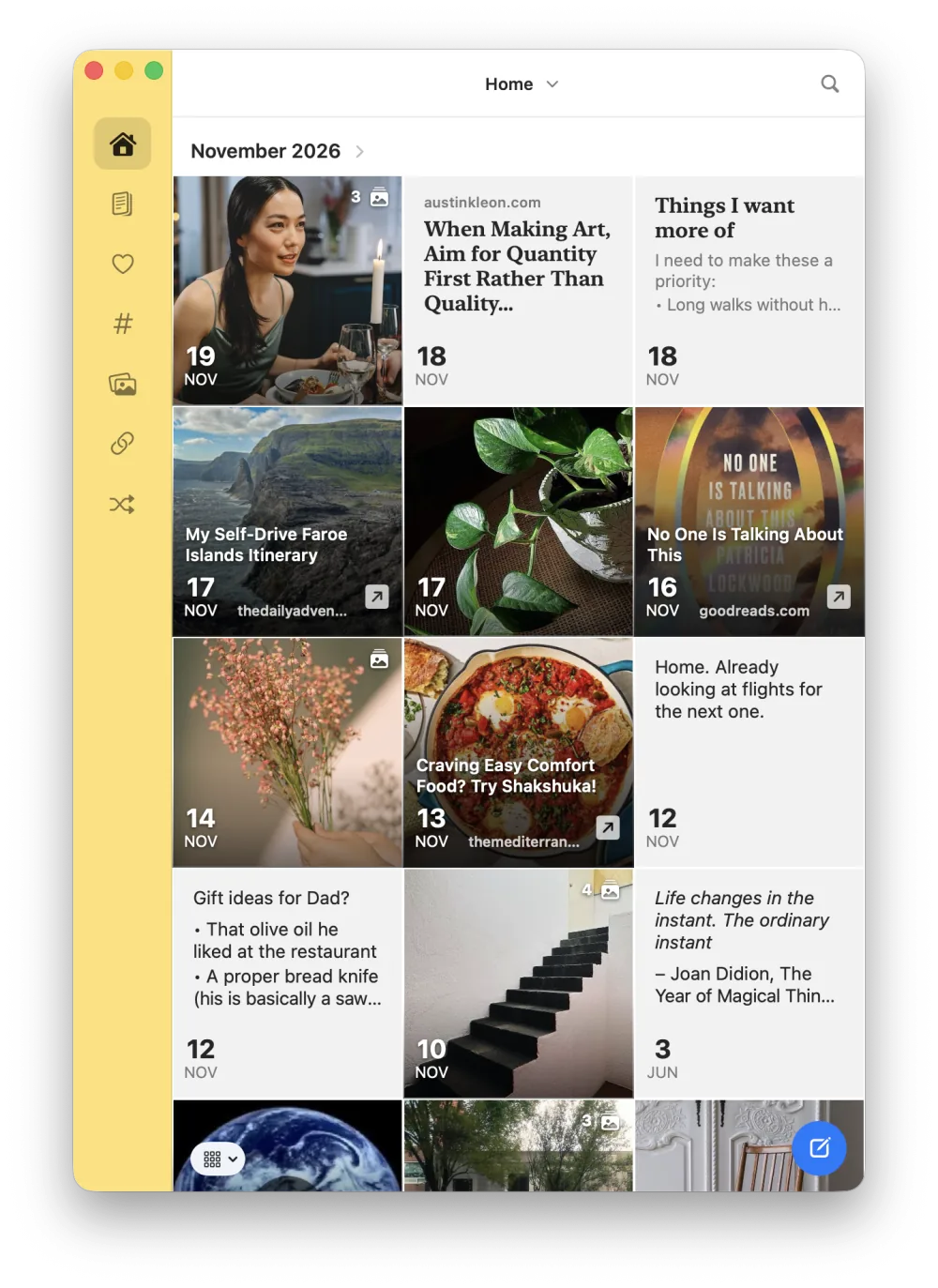
The grid
- Widen the window to see more posts at once. The grid keeps your place as you resize.
- Posts are grouped under month headings. Click a heading to open that month.
- Link previews, text posts and videos each have their own look, and posts with several photos are marked.
- Dates are easier to read on bright photos.
- Right-click a post for the same actions as in the list, plus Quick Look to see its photos full size.
The compact list
- One post per row with its date beside it, grouped by month.
- Wider rows fit more text when you widen the window.
- It loads 100 posts at a time.
Reading Your Posts
- Better formatting. Quotes have a bar down the side, lists take less room and can be nested, code has a background, and headings stand out in the feed.
- Checklists and section breaks. Write
- [ ]or- [x]for a checklist, and---for a section break. - Threads. Replies now sit under their first post, joined by a thread line.
- The post you open in a thread has a subtle dashed outline instead of a colored background, so its text is easier to read, especially in dark mode.
- Line breaks now show as you typed them. Press Return once for a new line, or twice for a new paragraph.
- Spacing between paragraphs, lists, quotes and headings is more even.
- A line of hashtags is shown in grey.
- Videos show a play button in the middle.
- Posts on iPhone are a little wider, with more room for text on each line.
Links
- On iPhone and iPad, links open right inside Minders, and Done takes you back to where you were. Links for apps you have, such as YouTube, still open in those apps.
- Touch and hold a link preview on iPhone or iPad to peek at the page.
- A link preview always shows where it goes and opens with a click or tap, even before its title and picture have loaded.
- Link previews show more of their picture. Wide pictures are no longer cut off at the sides, and book covers show whole.
- Pictures in link previews show right away instead of flickering.
- YouTube and other video links are now saved like other links, so their previews show right away.
- When a post ends with a link, the feed shows its preview without repeating the link above it.
- A link in the middle of a post shows a short version of its address until its title loads, so the post reads cleanly and doesn’t jump.
- VoiceOver reads a link preview as a link, with its title and site, and can open or copy it.
Writing and Editing
Everywhere
- Reorder photos and videos. Drag them into the order you want (touch and hold on iPhone and iPad), in a new post or one you’re editing. A post reordered this way keeps its old order on devices still running an older version of Minders.
- Tag suggestions. Type # and a few letters and Minders suggests your matching tags, spelled the way you’ve used them before.
- The editor’s button says what it will do: Post, Schedule or Save.
- Typing
--no longer turns into a dash, so---makes a section break.
On Mac
- Find and replace while writing a post: Edit ▸ Find ▸ Find and Replace… (⌥⌘F).
- The post’s date is easier to change. Click anywhere on it and pick the date in a popover right below it.
- A changed date or a scheduled post now says so, with a button to undo it.
- A scheduled post can go up right away from the editor or from its label in the list, which also says when it will post. Its date can be edited too.
On iPhone and iPad
- Add several photos and videos to a post at once, without giving Minders access to your photo library.
- Undo and Redo buttons, for typing and for adding, removing or moving photos.
- The editor’s buttons follow the new iOS look, and picking a date shows the calendar right away.
- The photo and tag buttons stay on screen when you put the keyboard away, and tags are one button. Drag your text down to put the keyboard away.
- The post’s date is at the top. Tap it to change the date, or tap ⊗ to go back.
- The text follows your Text Size setting, and a reply or quote shows the post you’re replying to or quoting.
- A scheduled post can go up right away from the editor, and its date can be changed.
Tags
- Sort the Tags list by most used or alphabetically: on Mac from the button in its corner, on iPhone and iPad from the button beside the filter field.
- In the editor’s tag menu, tags stay in the same order each time, and tags already in the post are checked. With many tags, the menu shows your most used and puts the rest under All Tags.
- The hashtags at the end of a post show once, as the tags under it, instead of also in the text. When a post has more tags than fit, the last button shows how many more (+3).
- A number such as #1 or #2026 is no longer treated as a tag.
Collections
- A new collection list on iPhone and iPad, with a quick way to create, rename, export or delete a collection.
- Your collections are listed in the same order on every device.
Look and Feel
- Choose your sidebar color on Mac in Settings ▸ Themes. In Dark Mode it’s now a quieter gray by default. Choose Purple for the old look.
- On Mac, status messages (iCloud, subscription) are a small card at the bottom of the window, and look right in dark mode.
- On iPhone and iPad, status messages appear only at the top of Home, look like notices rather than posts, and scroll away with your posts.
- Minders on iPhone and iPad now uses the standard blue for buttons and links.
- In dark mode on iPhone and iPad, posts use the standard dark gray.
The Free Version and Minders Pro
- Nothing is hidden behind a purchase any more. The free version shows all of your posts and tags, including favorites, photos and links.
- You can write up to 50 posts per collection for free, and Minders shows how many you’ve used, with a heads-up as you near the limit.
- When you reach the limit, everything you wrote stays readable, searchable and editable.
- A simpler upgrade screen, now called Minders Pro: what you get, the yearly and one-time options in a short list, and one button. There’s no scrolling and no wait for prices to load.
- Upgrade any time from the collection menu and, on Mac, the Minders menu. Once you have it, Settings ▸ Contact on Mac shows “✓ Minders Pro”.
Fixes
- Fixed a crash on Mac when opening a page in grid view.
- Fixed a crash that could happen while loading link previews.
- A photo no longer keeps showing a loading indicator until you relaunch Minders.
- Photos no longer flicker between a loading spinner and the photo when your device is low on memory.
- A photo removed from a post on one device no longer sometimes comes back on another.
- Editing a post now updates its reminders too, so they no longer show the post’s old date.
- A new reminder set for now always appears on Home right away.
- A scheduled post whose date is a different day than the one it posts on now shows that date in full.
- On Mac, posts of medium length no longer sometimes get a lot of blank space under them.
- On Mac, New Collection in Settings no longer asks subscribers to upgrade.
- On a newly set-up device, collections no longer appear in a different order.
